.%20--%3e%3csvg%20xmlns='http://www.w3.org/2000/svg'%20viewBox='0%200%201610%20300'%3e%3cdefs%3e%3clinearGradient%20id='kb'%20x1='0'%20y1='0'%20x2='0'%20y2='300'%20gradientUnits='userSpaceOnUse'%3e%3cstop%20offset='0'%20stop-color='%2373c6e5'/%3e%3cstop%20offset='.25'%20stop-color='%2352b5dc'/%3e%3cstop%20offset='.5'%20stop-color='%233a9fc8'/%3e%3cstop%20offset='.75'%20stop-color='%232b82ae'/%3e%3cstop%20offset='1'%20stop-color='%231a6490'/%3e%3c/linearGradient%3e%3c/defs%3e%3cg%20fill='url(%23kb)'%20fill-rule='evenodd'%3e%3cpath%20d='M0%20300V0H86V136H160V0H246V164H166V219H246V300H160V219H86V300Z'/%3e%3cpath%20d='M401%2083H321V0H567V83H487V219H567V300H321V219H401Z'/%3e%3cpath%20d='M642%20300V0H728V83H808V136H882V0H968V300H882V219H802V164H728V300Z'/%3e%3cpath%20d='M1043%20300V0H1289V164H1209V219H1289V300H1203V219H1129V300ZM1129%2083V136H1203V83Z'/%3e%3cpath%20d='M1364%20300V83H1444V0H1610V300H1524V219H1450V300ZM1450%2083V136H1524V83Z'/%3e%3c/g%3e%3c/svg%3e)
Kinra Space / Organize work
Projects and workspaces
Give work its own folder, open its overview, and keep track of repository changes.
Experimental · private access. Public signup is not open.
Read as MarkdownA project gives a folder its own place in the sidebar. Its workspace holds sessions, Files, Source, and Terminal. Projects on the same machine can access shared files; creating a project is not an isolation or permission boundary.
Choose where work belongs
| Choice in New project | Use it for |
|---|---|
| Local folder or GitHub repository | A folder on your machine, optionally cloned from an existing GitHub repository. |
| New private project in Depot | A new repository kept privately in Depot, after your explicit custody choice. |
| Recover a project from Depot | An existing saved Depot repository you want to bring onto this machine. |
An existing GitHub repository keeps its configured remote. It is not moved to Depot by registering it as a project.
Create a local or GitHub project
- Open Projects → New project.
- Enter a Project name and choose Local folder or GitHub repository under Where it belongs.
- For a GitHub clone, provide the repository. You can also use Your profile → Manage GitHub… → Bring into a project to fill the form from a repository.
- Choose Create project.
- Space opens its first session in Chat. Read Kin’s trust decision for the new workspace before continuing.
You should see: the project in the sidebar and its name above the session. If setup stops, Projects retains the attempt. Choose Resume project and retry it after resolving the reported problem.
Read the workspace Overview
Click a workspace name in the sidebar or topbar. Its Overview shows live and recent saved sessions, repository status, and key documents. Managed Depot repositories also show custody and inspected Changes; portfolios show members.
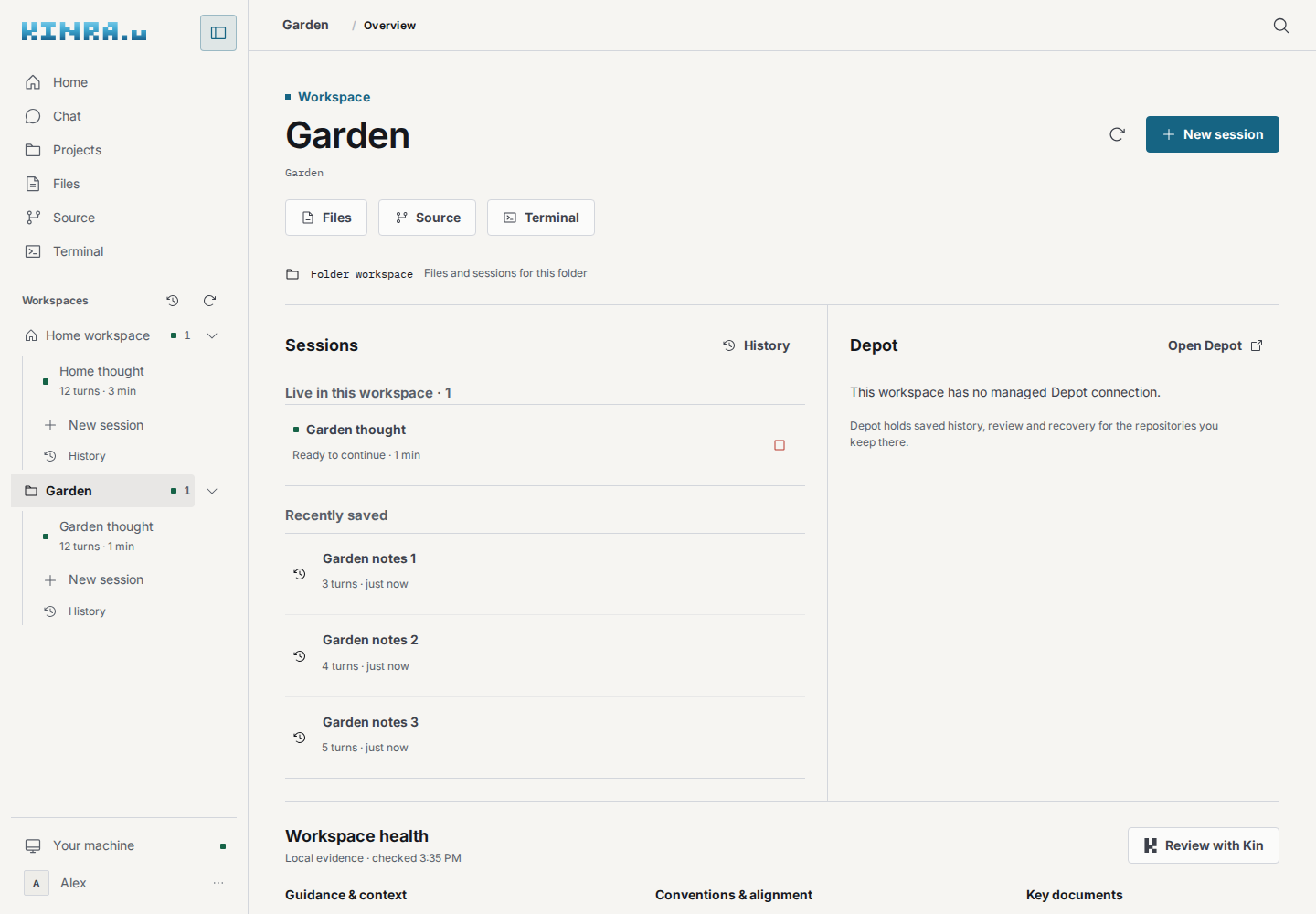
A local example project. The overview brings sessions, documents, and local measurements together; it does not run a review automatically.
Use New session to start work or choose an existing session to continue it. Files, Source, and Terminal open in this workspace. Opening Overview leaves your browser’s current session attachment while Kin can keep working.
Workspace health reports guidance files, declarations, and nearby conventions. Token counts are estimates of file size, not the session’s actual model usage or a compliance score. Missing files and unreadable files remain distinct. Refresh workspace reads current facts.
Review with Kin starts a new session for a read-only alignment assessment. Kin examines the guidance and suggests improvements with evidence. Review those suggestions before asking for changes.
Keep local Git history
For a local or GitHub repository, Source shows the branch and files marked modified, added, untracked, or in conflict. Review the changes, enter a commit message, and choose Commit changes to keep a local checkpoint.
With a remote configured, Fetch reads remote updates, Pull · fast-forward brings compatible updates into the checkout, and Push branch sends your branch after confirmation. A local commit is not a remote copy.
A folder inside a repository is ordinary files; Source works at the repository’s own root. If an interrupted merge is reported, resolve its conflicts or use Undo interrupted merge after reviewing what will be discarded. Commits stay blocked while conflicts remain.
For several related repositories, continue with Portfolios.