.%20--%3e%3csvg%20xmlns='http://www.w3.org/2000/svg'%20viewBox='0%200%201610%20300'%3e%3cdefs%3e%3clinearGradient%20id='kb'%20x1='0'%20y1='0'%20x2='0'%20y2='300'%20gradientUnits='userSpaceOnUse'%3e%3cstop%20offset='0'%20stop-color='%2373c6e5'/%3e%3cstop%20offset='.25'%20stop-color='%2352b5dc'/%3e%3cstop%20offset='.5'%20stop-color='%233a9fc8'/%3e%3cstop%20offset='.75'%20stop-color='%232b82ae'/%3e%3cstop%20offset='1'%20stop-color='%231a6490'/%3e%3c/linearGradient%3e%3c/defs%3e%3cg%20fill='url(%23kb)'%20fill-rule='evenodd'%3e%3cpath%20d='M0%20300V0H86V136H160V0H246V164H166V219H246V300H160V219H86V300Z'/%3e%3cpath%20d='M401%2083H321V0H567V83H487V219H567V300H321V219H401Z'/%3e%3cpath%20d='M642%20300V0H728V83H808V136H882V0H968V300H882V219H802V164H728V300Z'/%3e%3cpath%20d='M1043%20300V0H1289V164H1209V219H1289V300H1203V219H1129V300ZM1129%2083V136H1203V83Z'/%3e%3cpath%20d='M1364%20300V83H1444V0H1610V300H1524V219H1450V300ZM1450%2083V136H1524V83Z'/%3e%3c/g%3e%3c/svg%3e)
Kinra Space / Work with Kin
Conversations
Start, resume, and direct work with Kin while keeping decisions and drafts in the right session.
Experimental · private access. Public signup is not open.
Read as MarkdownA session is a conversation in one workspace. Confirm the workspace name before sending a request: Kin’s work uses that folder and its instructions.
Start or resume
- Choose Talk with Kin on Home, or New session under a workspace, for a fresh conversation.
- Choose Continue or a live session row to return to ongoing work.
- Choose a workspace’s History to find ended sessions. Search by title, then select one to continue it. The history control beside Workspaces opens history across workspaces.
Saved history comes from Kin. Opening a new browser window does not create another copy of your conversation history.
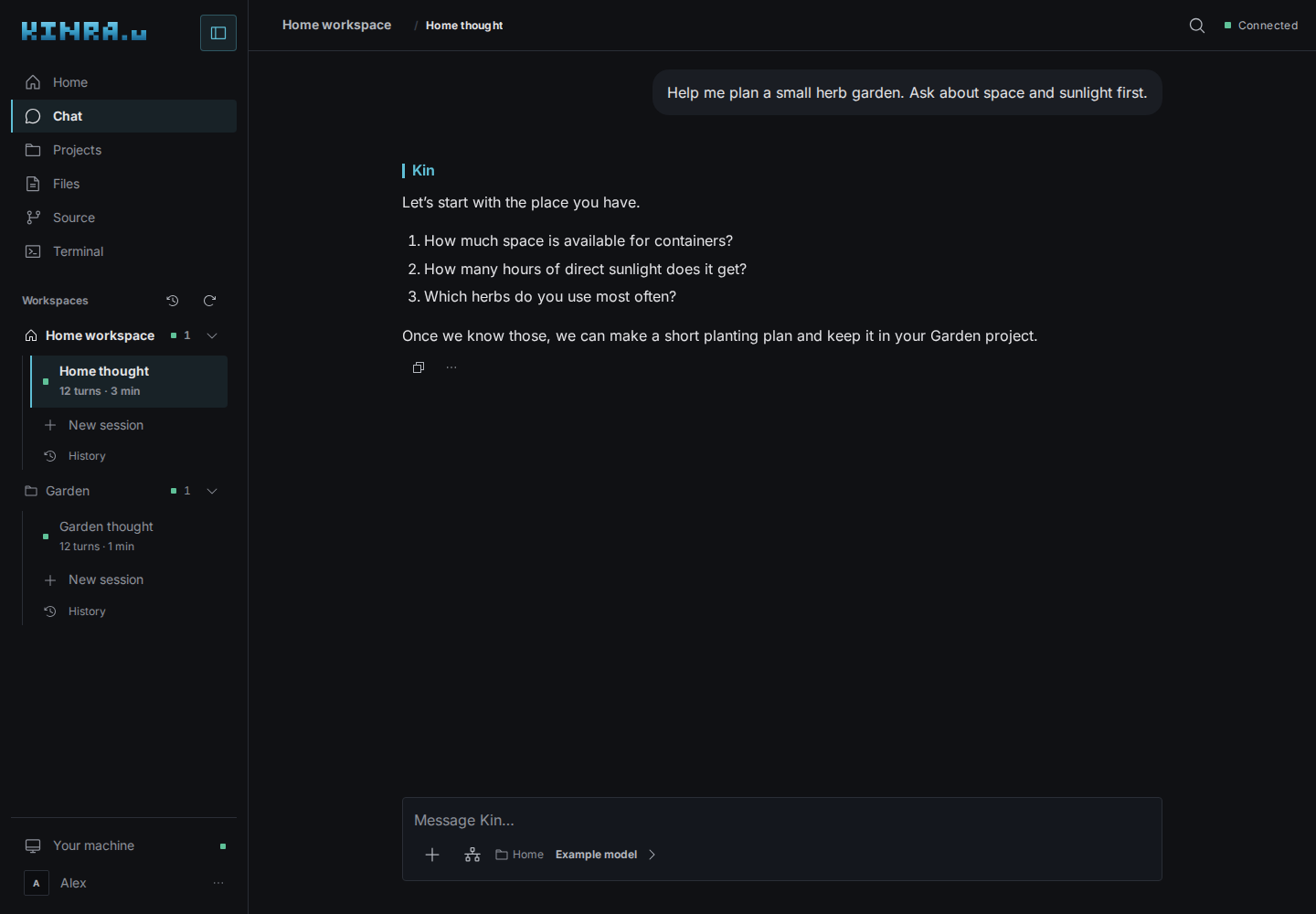
A scripted conversation fixture in the real browser interface. Messages and model labels are examples, not an inference or provider-availability claim.
Write and send
On a desktop keyboard, Enter sends and Shift+Enter adds a line. On a touch keyboard, Enter adds a line and Send submits. At the beginning of the composer, Up recalls earlier prompts; Down returns to the draft you parked.
Drop or paste files, or choose +, to attach up to eight files. They upload into the workspace and are shared with Kin when you send. Removing a file chip removes it from that message; the uploaded file remains in Files.
The model control changes the model, working mode, and supported reasoning settings. An existing session keeps its own model. See Accounts and models.
Follow work and answer decisions
Kin’s responses appear in the timeline. Open a folded activity group or tool to inspect its inputs and output. Scroll up to read without following new text; return to the latest content to follow again.
Questions and approvals stay in the session that asked them. Read the operation, affected files, and available choices. A Git credential request has a separate Git access review. Decline an action you do not want, then explain the change in direction.
Reasoning, when forwarded by Kin, is optional transient display. Saved sessions do not replay that text. Use saved answers, tool results, and files when you need to return to an outcome.
Stop, leave, or end
| Action | What happens |
|---|---|
| Red stop square in the composer | Stops the current turn; your next draft remains. |
| Open Home or a workspace Overview | Leaves the browser attachment; Kin can keep working. |
| Close the tab | Disconnects this browser; work and saved history remain on the machine. |
| End session from a session row’s … menu | Ends the live session and moves it to History; active work asks for confirmation. |
| Sign out | Closes Kin and terminal connections in tabs using that sign-in; retained work stays on the machine. |
Stopping does not undo completed changes. Inspect Files or Source before asking Kin to retry an interrupted action.
If another client has the keyboard
Space opens a session held by another client for watching. Take the keyboard asks Kin for the writer role; the current holder must release it first. Only the writer can direct that session. Another client must also release the keyboard before you can end its session.
Search or ask Kin
- Open Ctrl+K / ⌘K and type a session name, command, or question.
- Use arrows and Enter to select a result.
- If nothing matches, Ask Kin: “…” starts a new session in the current workspace and sends the question. Ctrl+Enter / ⌘Enter asks even when other rows match.
Asking from the palette sends immediately. Wait for acknowledgement before asking again: a second question during that wait is refused and is not kept. If model setup fails, the question returns to your draft.