.%20--%3e%3csvg%20xmlns='http://www.w3.org/2000/svg'%20viewBox='0%200%201610%20300'%3e%3cdefs%3e%3clinearGradient%20id='kb'%20x1='0'%20y1='0'%20x2='0'%20y2='300'%20gradientUnits='userSpaceOnUse'%3e%3cstop%20offset='0'%20stop-color='%2373c6e5'/%3e%3cstop%20offset='.25'%20stop-color='%2352b5dc'/%3e%3cstop%20offset='.5'%20stop-color='%233a9fc8'/%3e%3cstop%20offset='.75'%20stop-color='%232b82ae'/%3e%3cstop%20offset='1'%20stop-color='%231a6490'/%3e%3c/linearGradient%3e%3c/defs%3e%3cg%20fill='url(%23kb)'%20fill-rule='evenodd'%3e%3cpath%20d='M0%20300V0H86V136H160V0H246V164H166V219H246V300H160V219H86V300Z'/%3e%3cpath%20d='M401%2083H321V0H567V83H487V219H567V300H321V219H401Z'/%3e%3cpath%20d='M642%20300V0H728V83H808V136H882V0H968V300H882V219H802V164H728V300Z'/%3e%3cpath%20d='M1043%20300V0H1289V164H1209V219H1289V300H1203V219H1129V300ZM1129%2083V136H1203V83Z'/%3e%3cpath%20d='M1364%20300V83H1444V0H1610V300H1524V219H1450V300ZM1450%2083V136H1524V83Z'/%3e%3c/g%3e%3c/svg%3e)
Kinra Space / Work with Kin
Files
Bring files into your workspace, edit them safely, and share their context with Kin.
Experimental · private access. Public signup is not open.
Read as MarkdownChoose the workspace, then Files. The folder path above the list steps back to a parent folder; the Files breadcrumb returns to the workspace root. Space remembers the folder and open file when you return from another page.
Create or upload
Use the file toolbar to create a file or folder. To upload, drop files into the open folder or use the upload control. Uploads never overwrite an existing file. If a name conflicts, rename the incoming file or deliberately resolve the existing one before retrying. Each uploaded file can be up to 64 MiB.
Attaching a file to a message also uploads it into the current workspace. Removing the attachment from the draft leaves the uploaded original here.
Save an edit
- Open a text file from the list.
- Make your changes in the editor.
- Choose Save changes, or press Ctrl+S / ⌘S.
- Check that the editor no longer reports unsaved changes.
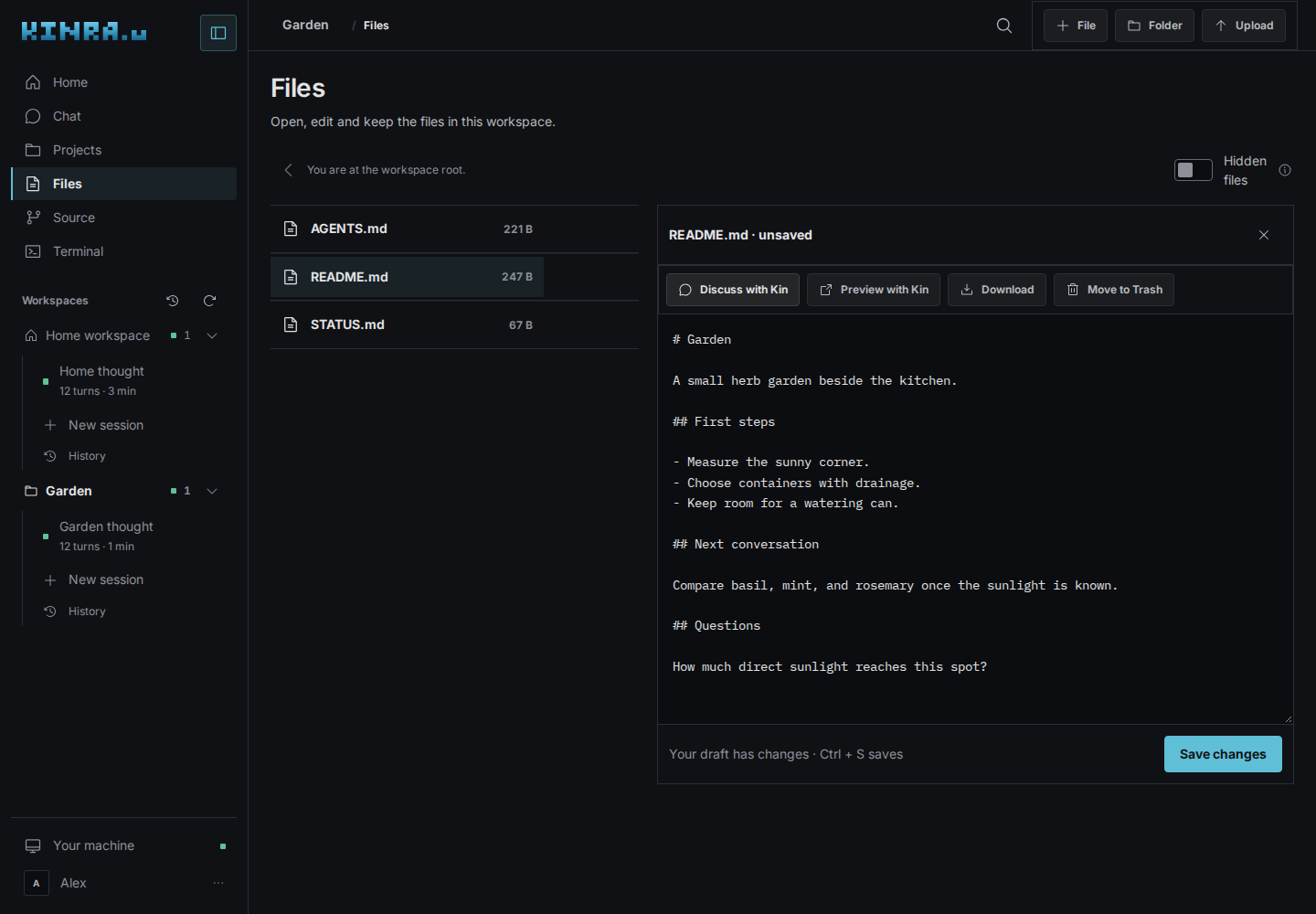
The file list, open document, and save controls in a disposable workspace.
Typing while a save is in progress can leave newer text unsaved. Save again after that save finishes. File drafts stay in memory while you navigate; save before reloading or closing the browser. Conversation draft recovery is not a backup of an unsaved file edit.
If the file changed elsewhere
A conflicting save keeps your draft and offers a choice inside the editor:
- Use the newer text accepts the current file from the machine.
- Keep mine writes your draft after you have reviewed the conflict.
- Save it again recreates a file that was removed behind the editor.
Copy anything you want to retain before choosing between competing edits.
Discuss or preview with Kin
Discuss with Kin deliberately adds the file’s context to your message. Review the draft and send when ready.
Preview with Kin opens the file beside Kin in Chat. Closing the preview returns you to the open file. This is different from downloading the original. For an interactive result you want to revisit, see Artifacts and widgets.
Download or share
The download control saves the original file to your device. Right-click a file, press Shift+F10, or choose … for open, discuss, preview, download, and path-copy actions.
On supported devices, Share file… first prepares the original. A second tap on Share opens the system share menu. If sharing is unavailable, use Download. This does not create a public file link.
Saving a file writes it to your machine. Use Source or Depot to keep a project checkpoint separately.