.%20--%3e%3csvg%20xmlns='http://www.w3.org/2000/svg'%20viewBox='0%200%201610%20300'%3e%3cdefs%3e%3clinearGradient%20id='kb'%20x1='0'%20y1='0'%20x2='0'%20y2='300'%20gradientUnits='userSpaceOnUse'%3e%3cstop%20offset='0'%20stop-color='%2373c6e5'/%3e%3cstop%20offset='.25'%20stop-color='%2352b5dc'/%3e%3cstop%20offset='.5'%20stop-color='%233a9fc8'/%3e%3cstop%20offset='.75'%20stop-color='%232b82ae'/%3e%3cstop%20offset='1'%20stop-color='%231a6490'/%3e%3c/linearGradient%3e%3c/defs%3e%3cg%20fill='url(%23kb)'%20fill-rule='evenodd'%3e%3cpath%20d='M0%20300V0H86V136H160V0H246V164H166V219H246V300H160V219H86V300Z'/%3e%3cpath%20d='M401%2083H321V0H567V83H487V219H567V300H321V219H401Z'/%3e%3cpath%20d='M642%20300V0H728V83H808V136H882V0H968V300H882V219H802V164H728V300Z'/%3e%3cpath%20d='M1043%20300V0H1289V164H1209V219H1289V300H1203V219H1129V300ZM1129%2083V136H1203V83Z'/%3e%3cpath%20d='M1364%20300V83H1444V0H1610V300H1524V219H1450V300ZM1450%2083V136H1524V83Z'/%3e%3c/g%3e%3c/svg%3e)
Kin / Overview
Kin
Kin is a terminal-based AI peer for working in a real project. It can read and change files, run tools, search the workspace, coordinate agents, and keep a durable session. Outpost carries the same working relationshi…
Read as Markdown
Kin is a terminal-based AI peer for working in a real project. It can read and change files, run tools, search the workspace, coordinate agents, and keep a durable session. Outpost carries the same working relationship into an always-on browser surface for Chat, scheduled work, and attention.
“Peer” describes an engineering philosophy, not a claim about sentience: design for understanding and collaboration, calibrate before blaming the model, and verify every important claim.
Start here
The shortest path from a checkout to useful work is three page transitions:
- Install Kin.
- Connect a model and launch. The in-app
/providersflow is the recommended route. - Send your first message.
If Kin is already installed, go straight to Connect a model and first run. You do not need to read the reference pages before starting.
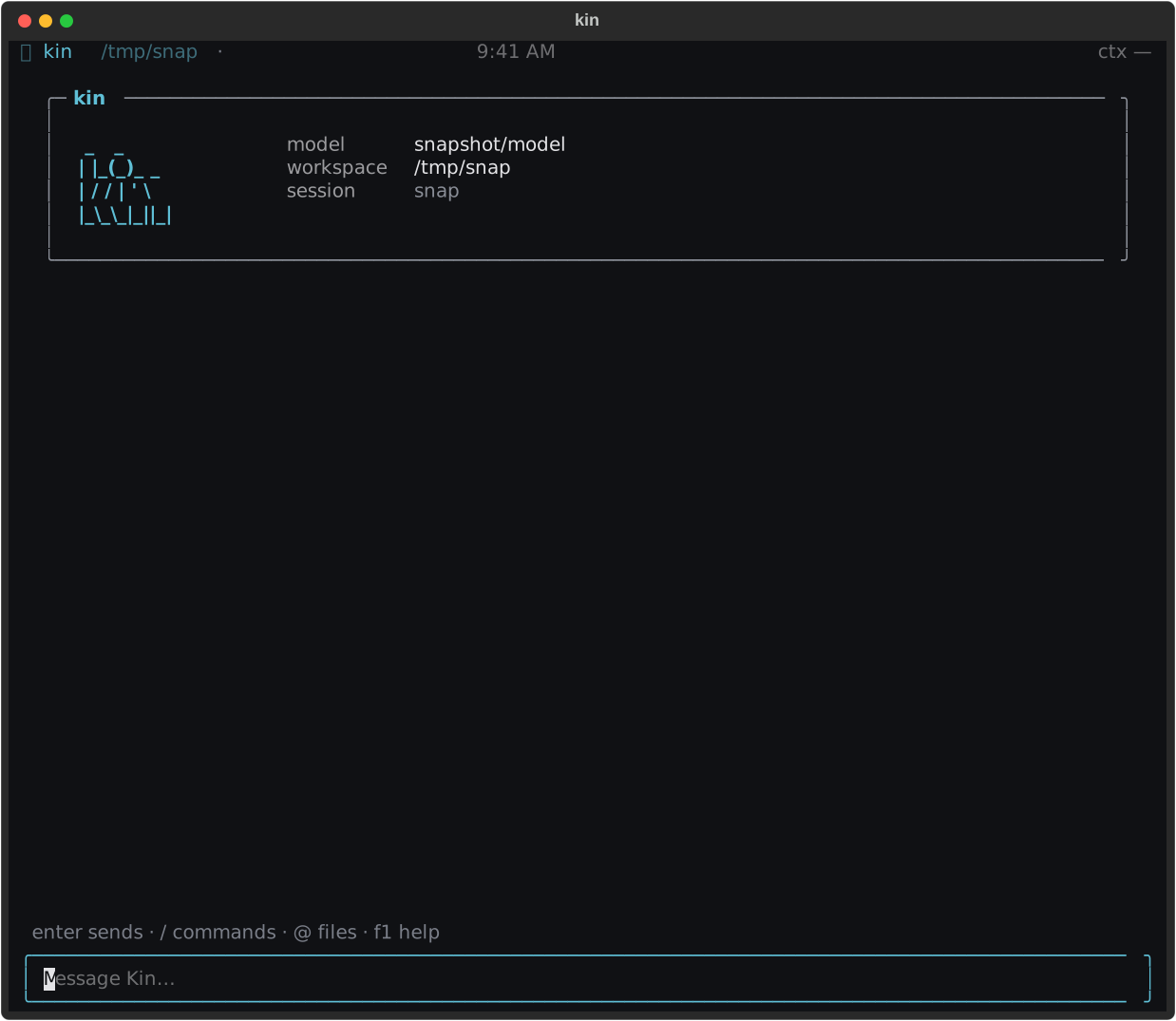
The welcome screen is the final connection check: confirm the model and workspace, then send a message.
Four everyday paths
Work with Kin in the terminal
Start with a concrete outcome: “explain this failure,” “change the parser and
test it,” or “find every caller of this function.” Kin streams its answer,
keeps reasoning collapsed, and renders tool calls as a compact work log.
File-writing tools show intentional diffs with one context line and a
(+N -M) badge; reads and review output stay collapsed until you ask.
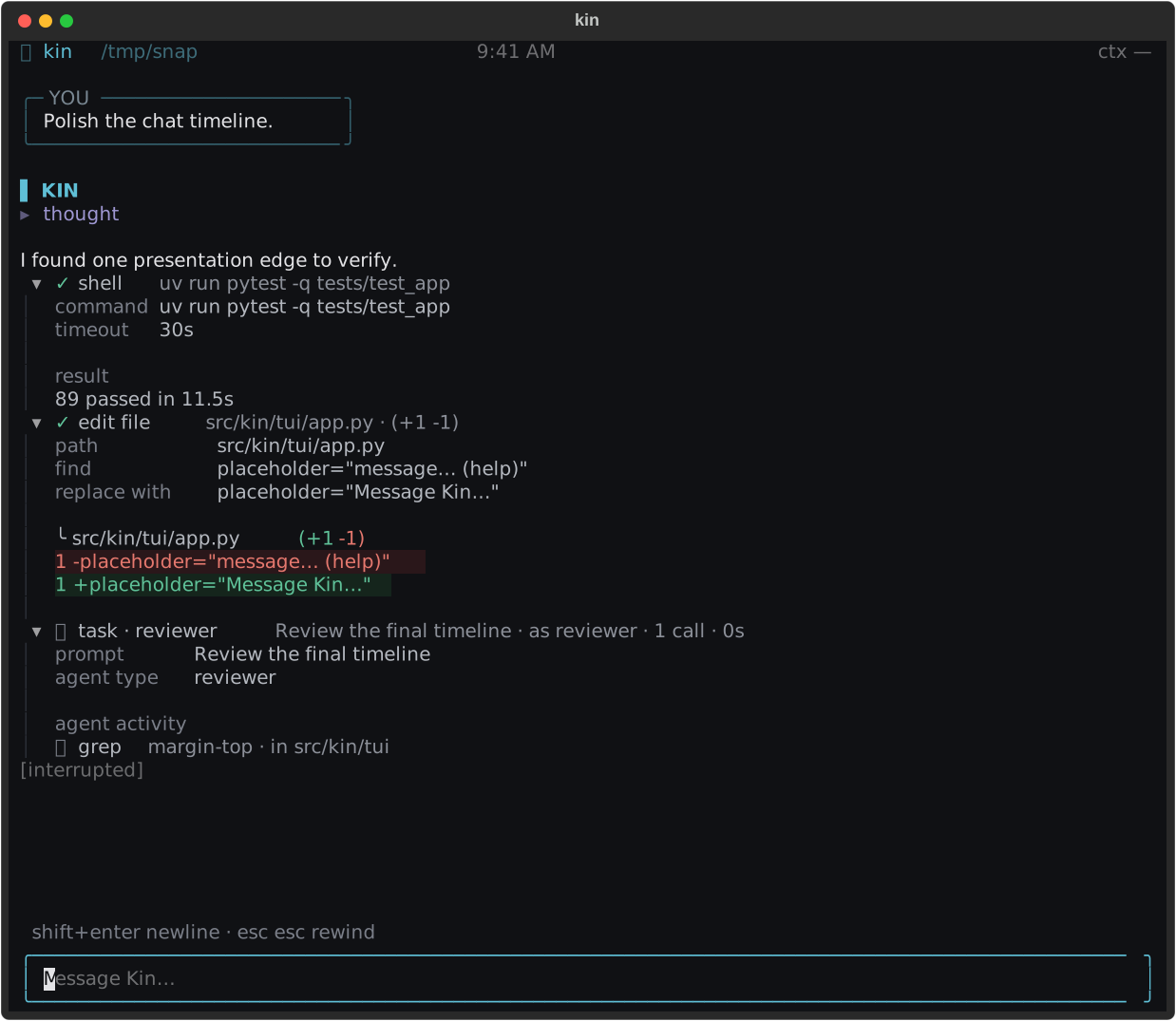
The timeline distinguishes explanation, reasoning, tool work, edits, and interruption without turning the transcript into a debug console.
Continue with First session, then keep Files & tools, modes and approvals, and keybindings nearby.
Create work that runs later
Outpost automations run a saved prompt on a schedule and retain every result. Choose a project, describe the outcome, pick a schedule, and inspect Activity when it fires. Recipes are starting points, not hidden behavior: the resulting prompt and schedule remain visible.
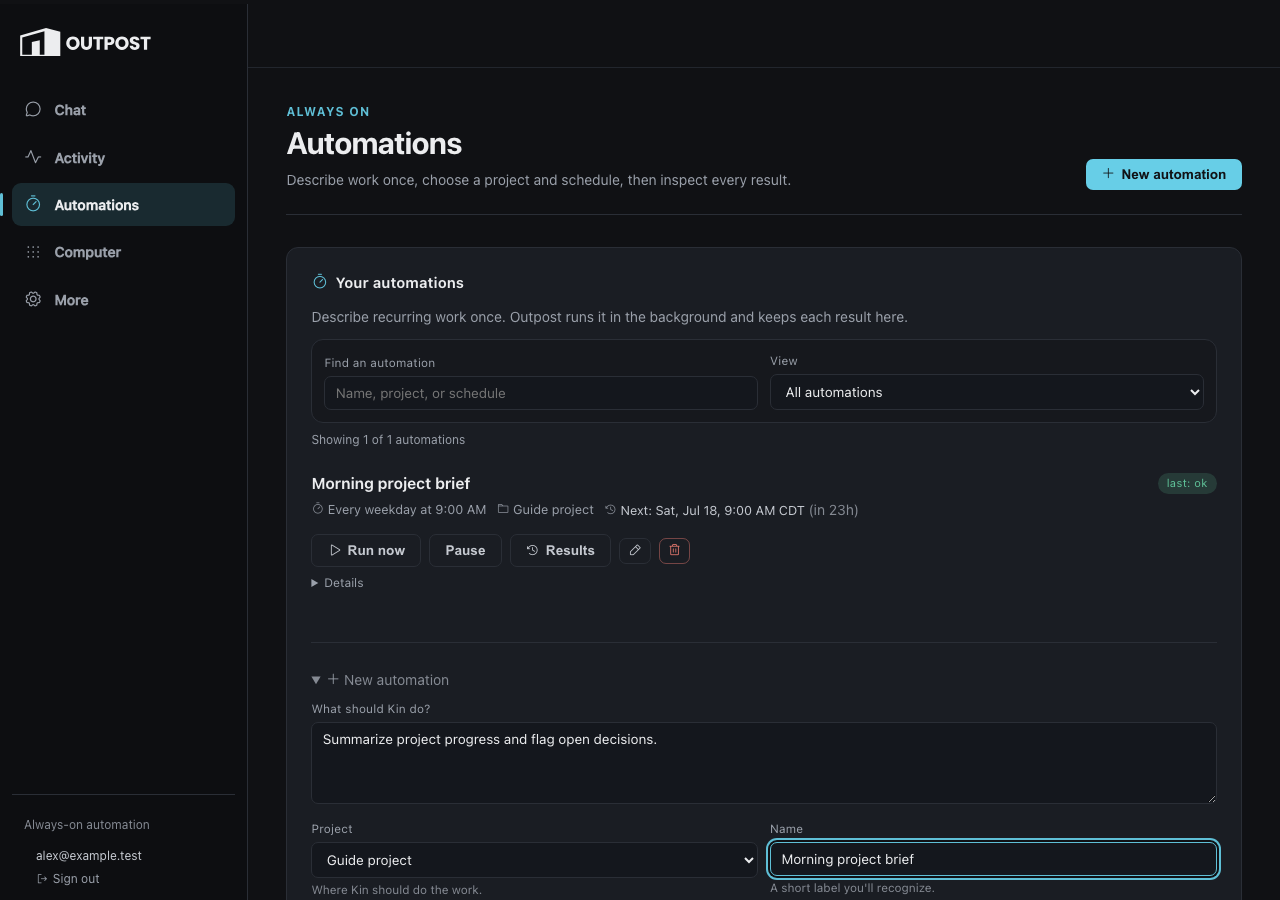
Automation creation begins with the work and project; advanced execution details remain available without leading the form.
Go to Outpost overview for the browser tour or Automations for the exact scheduling contract.
Keep the conversation on your phone
Outpost Chat is the direct conversational surface. It can summarize activity, show tool progress, and bring you to durable questions that need a decision. The account chip shows the verified identity; Sign out ends that authenticated browser session.
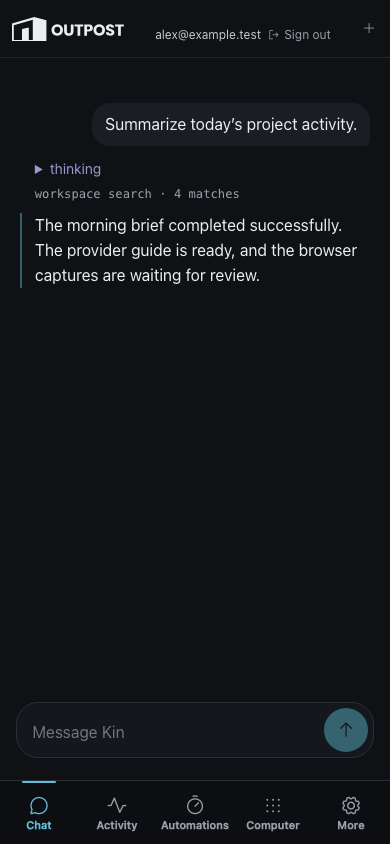
Mobile Chat keeps the composer and primary destinations reachable while the verified identity and Sign out remain visible in the top bar.
Read Chat for the interaction model and Notifications for how attention reaches you.
Delegate a bounded piece of work
Use a subagent for a focused independent investigation, a workflow for a visible multi-step run, or Beam when local work should continue on Outpost. Each surface keeps status and results visible; delegation does not bypass the same tool and permission boundaries.
Find the right depth
- Use Kin is practical daily operation: files, search, memory, modes, sessions, commands, web tools, research, and MCP.
- Agents & automation covers skills, subagents, workflows, and headless runs.
- Outpost covers Activity, automations, Chat, notifications, Beam, triggers, and Rig.
- How Kin works explains architecture, permissions, agents, tasks, and visual identity.
- Reference is the complete provider, sandbox, CLI, environment, settings, event, and protocol surface.
- Maintainers preserves testing, decisions, extension, multi-machine, and Outpost operations material without placing it in the everyday path.
If something looks wrong, first confirm the model and workspace in the welcome screen. Provider errors belong in Connect a model and first run; permission prompts belong in Modes & approvals; remote service and deployment issues belong in Outpost operations.