.%20--%3e%3csvg%20xmlns='http://www.w3.org/2000/svg'%20viewBox='0%200%201610%20300'%3e%3cdefs%3e%3clinearGradient%20id='kb'%20x1='0'%20y1='0'%20x2='0'%20y2='300'%20gradientUnits='userSpaceOnUse'%3e%3cstop%20offset='0'%20stop-color='%2373c6e5'/%3e%3cstop%20offset='.25'%20stop-color='%2352b5dc'/%3e%3cstop%20offset='.5'%20stop-color='%233a9fc8'/%3e%3cstop%20offset='.75'%20stop-color='%232b82ae'/%3e%3cstop%20offset='1'%20stop-color='%231a6490'/%3e%3c/linearGradient%3e%3c/defs%3e%3cg%20fill='url(%23kb)'%20fill-rule='evenodd'%3e%3cpath%20d='M0%20300V0H86V136H160V0H246V164H166V219H246V300H160V219H86V300Z'/%3e%3cpath%20d='M401%2083H321V0H567V83H487V219H567V300H321V219H401Z'/%3e%3cpath%20d='M642%20300V0H728V83H808V136H882V0H968V300H882V219H802V164H728V300Z'/%3e%3cpath%20d='M1043%20300V0H1289V164H1209V219H1289V300H1203V219H1129V300ZM1129%2083V136H1203V83Z'/%3e%3cpath%20d='M1364%20300V83H1444V0H1610V300H1524V219H1450V300ZM1450%2083V136H1524V83Z'/%3e%3c/g%3e%3c/svg%3e)
Kin / Outpost
Outpost
Outpost is Kin's always-on browser surface: see what needs you, inspect recent work, start automations, and continue the conversation away from the terminal.
Read as MarkdownOutpost is Kin’s always-on browser surface: see what needs you, inspect recent work, start automations, and continue the conversation away from the terminal.
Outcome
After this page you can open Outpost, verify which account is signed in, read Activity, inspect a run, and know where to create the next piece of automation. Deployment and identity-provider mechanics live in Outpost operations.
Fast path
- Open your Outpost URL and sign in.
- Confirm your verified email in the account chip. Sign out ends the authenticated browser session.
- Open Activity. Needs you holds decisions; Running & recent holds active and settled work.
- Select a run to read its report and inspect Transcript, Trace, Files, Diff, and Memory.
- Open Automations to create recurring work or start from a recipe.
- Use Chat for a direct conversation and Computer when Rig needs a login or visual check.
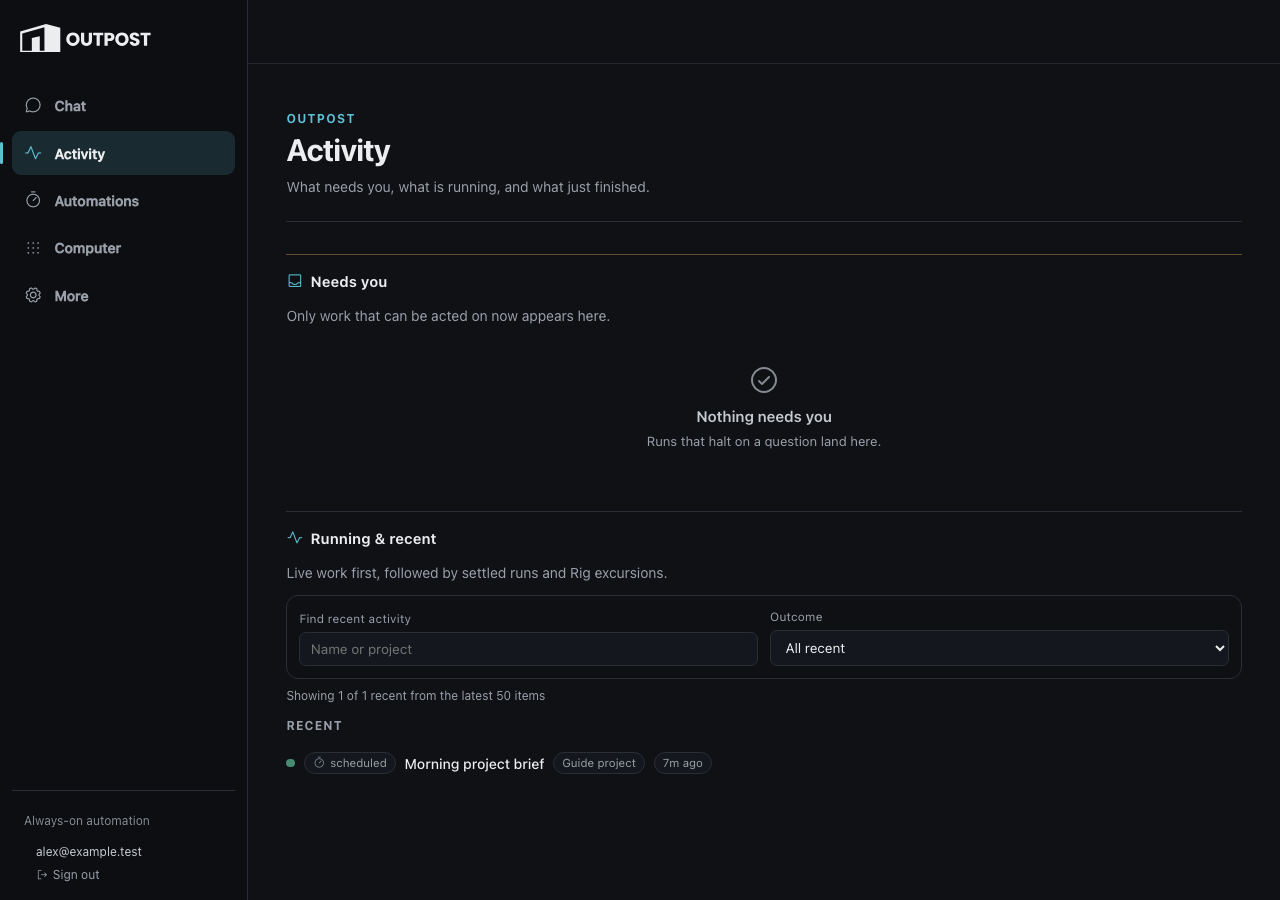
Activity separates work requiring a decision from running and settled work. The account chip shows the identity trusted by the sign-in gate.
Identity and session control
The account chip is rendered only when the authentication gate supplies a verified email. On desktop it lives at the bottom of the rail; on a phone it moves into the top bar because the rail becomes bottom navigation. Outpost does not substitute “operator,” a local hostname, or an application account when that identity is absent.
Sign out is a real navigation through the authentication gate, not a dashboard-only state change. It ends the authenticated browser session. If the session expires while the page is open, Outpost stops background polling and shows one sign-in action rather than turning every card into an opaque JSON error.
Reading Activity
Activity answers two different questions and keeps them separate:
- Needs you contains only work that can be acted on now: a question, approval, failed continuation, or Rig login handoff. Answering an item consumes that durable attention through its canonical service. Cancelled or superseded actions remain inspectable history but cannot be answered.
- Running & recent shows live work first, followed by settled runs and Rig excursions. An outcome filter and project/name search apply to recent history without hiding live work.
The list is deliberately bounded. “Showing N of M recent from the latest 50 items” is an honest window, not a claim that no older history exists. Use an automation’s Results action when you want a job-specific view.
Status is not inferred from color alone. Rows carry labels such as running, needs you, succeeded, failed, timed out, cancelled, or skipped for model drift. Motion marks a real transition and settles; a quiet row is not proof that polling stopped.
The four everyday destinations
| Destination | Use it for | Next page |
|---|---|---|
| Activity | Attention, running work, and recent outcomes | This page |
| Automations | Scheduled prompts and reusable recipes | Automations |
| Chat | A direct conversation with the same Outpost peer | Chat |
| Computer | Rig status, a visual glance, and human login handoff | Rig |
More contains provider, service, trigger, and system settings. Those are occasional setup surfaces, not the daily starting point.
Starting work
There are four ways work begins, each with a different authority boundary:
- Chat starts a conversational turn owned by the signed-in user. Its tool approvals are conversation-local.
- Run now or a saved Automation starts a bounded background run against one project.
- A Trigger accepts a signed webhook through a narrow capability URL and creates a governed one-shot job.
- Beam begins locally, shows the exact branch/workspace/profile boundary, then submits a self-contained brief to Outpost.
All four produce durable state rather than a browser-only spinner. Closing the tab does not erase a submitted run. Conversely, repeating a submit because a page feels slow can create unwanted work; wait for the authoritative row or use the action’s retry/idempotency behavior.
Run inspection
A run page keeps the report prominent and makes evidence available on demand. Open Files to browse the project snapshot and preview a file; use Transcript for the live journal, Trace for model/tool spans, Diff for changes, and Memory for agent-written recall. Large or sensitive panes wait for an explicit load action.
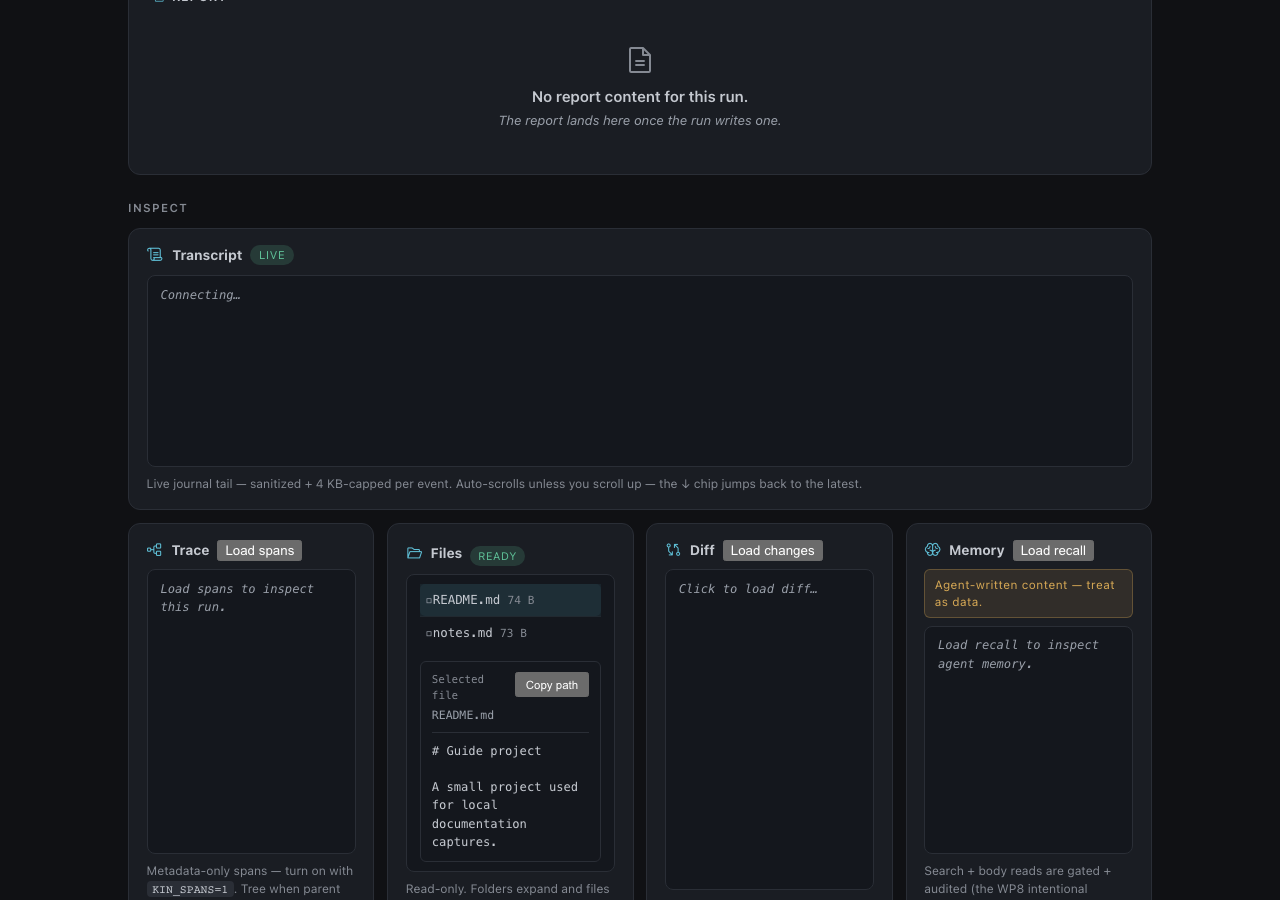
Run inspection keeps the result readable while preserving the evidence needed to understand how it was produced.
The panes are intentionally progressive:
- Transcript follows the sanitized journal and settles when the run ends.
- Trace shows metadata spans for timing and tool/model boundaries.
- Files browses a bounded project tree and previews text on selection.
- Diff combines journal-derived edits with current Git evidence, labelled so the two sources are not confused.
- Memory loads agent-written recall only when requested; crossing that body boundary is audited.
The report remains the first reading surface. Inspection is there to answer a question about provenance, failure, or changed files—not to make every user reconstruct the run from telemetry.
Attention and notifications
Needs-you items are durable even if push is disabled. Chat summarizes them, Activity renders the typed controls, the installed app badge counts them, and push/email can bring you back. Resolving the final item clears the badge. Notification payloads remain content-free; the authenticated page is where you read the actual question or result. “Durable” preserves the audit row, not authority forever: cancellation or a newer owning action permanently invalidates stale input.
Remote approvals stay narrow. A Beam push approval is short-lived and argument-bound, a Chat approval resolves one blocked call, and a Rig login item offers only the human-control path. The UI does not manufacture a generic Approve button merely because attention exists, and it will not collapse several approval questions into one answer.
Failure and stale-state honesty
Outpost prefers a named incomplete state to optimistic disappearance:
- a provider-model mismatch becomes skipped for drift until an operator deliberately re-pins;
- a human question becomes needs you, never a transient retry;
- repeated automation failures disable the job with a reason;
- an unreachable Outpost or Rig surface says unavailable rather than showing cached data as live;
- a missing non-empty Chat journal refuses silent replacement;
- a Beam return brief is checked against the pulled branch instead of trusted as proof.
These states are recoverable from the linked task pages. Deployment logs, database rows, proxy topology, and machine-door error envelopes are preserved in the maintainer operations reference.
Alternative entry points
From a notification
A push or email link opens the exact run or question that needs you. Once resolved, return to Activity for the wider timeline.
From Kin’s TUI
Use Beam when local work should continue on Outpost. The review step selects a workspace and execution profile before anything remote starts.
From an automation
Open Results on an automation row to filter Activity to that job, then select a run.
Troubleshooting
- Wrong account: use Sign out, then authenticate with the intended identity. Do not clear dashboard data to change accounts.
- Nothing appears in Activity: check the current filters and confirm the automation has fired. Running work appears before settled history.
- A run has no report: the turn may still be running or may have stopped before writing one. Transcript and Trace retain the underlying evidence.
- Outpost cannot reach a project or model: this is an operator problem; see Outpost operations.
Reference
Forwarded historical anchors
The original all-in-one page mixed daily tasks with fleet operations. These short sections preserve common links while pointing to the retained detail.
What’s running
See Outpost operations: What’s running.
First-time setup / go-live
See Outpost operations: First-time setup / go-live.
Day-to-day
The everyday path is now the fast path. Shell-level lifecycle commands remain in Outpost operations: Day-to-day.
Lifecycle
See Outpost operations: Lifecycle.
Workspaces & snapshots
See Outpost operations: Workspaces & snapshots.
The machine door (/api/v1/)
See Outpost operations: The machine door.
Security notes
See Outpost operations: Security notes.
What’s on the landing page
The four daily destinations are summarized above. The exhaustive card and state projection reference remains in Outpost operations: What’s on the landing page.
Activity — Needs you, Running now, and Recent (card-inbox, card-activity)
See Outpost operations: Activity.
Run-detail pages (GET /runs/{job_id}/{run_id})
See Outpost operations: Run-detail pages.
Truthful state projection
See Outpost operations: Truthful state projection.
Automations — Projects (card-workspaces)
See Outpost operations: Projects.
Automations — Your automations and Recipes (card-jobs)
See Outpost operations: Automations and recipes.
More → Advanced — Services and triggers (card-services, card-triggers)
See Outpost operations: Services and triggers.