.%20--%3e%3csvg%20xmlns='http://www.w3.org/2000/svg'%20viewBox='0%200%201610%20300'%3e%3cdefs%3e%3clinearGradient%20id='kb'%20x1='0'%20y1='0'%20x2='0'%20y2='300'%20gradientUnits='userSpaceOnUse'%3e%3cstop%20offset='0'%20stop-color='%2373c6e5'/%3e%3cstop%20offset='.25'%20stop-color='%2352b5dc'/%3e%3cstop%20offset='.5'%20stop-color='%233a9fc8'/%3e%3cstop%20offset='.75'%20stop-color='%232b82ae'/%3e%3cstop%20offset='1'%20stop-color='%231a6490'/%3e%3c/linearGradient%3e%3c/defs%3e%3cg%20fill='url(%23kb)'%20fill-rule='evenodd'%3e%3cpath%20d='M0%20300V0H86V136H160V0H246V164H166V219H246V300H160V219H86V300Z'/%3e%3cpath%20d='M401%2083H321V0H567V83H487V219H567V300H321V219H401Z'/%3e%3cpath%20d='M642%20300V0H728V83H808V136H882V0H968V300H882V219H802V164H728V300Z'/%3e%3cpath%20d='M1043%20300V0H1289V164H1209V219H1289V300H1203V219H1129V300ZM1129%2083V136H1203V83Z'/%3e%3cpath%20d='M1364%20300V83H1444V0H1610V300H1524V219H1450V300ZM1450%2083V136H1524V83Z'/%3e%3c/g%3e%3c/svg%3e)
Kin / Get started
Connect a model and first run
Connect Kinra, ChatGPT, another provider, or a local model server and send your first message.
Read as MarkdownLaunch kin in your workspace, connect a model, and confirm the welcome’s
model and directory before sending a message. Saved connections apply to new
sessions too.
Fastest Kinra path: /login
For hosted Kinra, enter /login. Complete browser sign-in; Kin enrolls this
installation with a revocable device key and configures the service’s Primary,
Vision, and Utility roles. Advertised hosted web retrieval becomes available
without copying Brave or Exa keys to your machine.
/login status shows the saved identity and active web route. /logout revokes
this device before removing managed local state.
On an SSH host, start this tunnel from the machine with your browser:
ssh -N -L 53682:127.0.0.1:53682 USER@SERVERThen run kin login on the server and open its printed URL locally. Keep the
tunnel open until sign-in finishes. If forwarding is unavailable, use a
Console-issued credential with kin connect; see the
CLI reference.
Provider setup: /models
- Run
kinin the directory you want to work in. - Enter
/providers, or enter/modelsand presscfor Connections. - Choose a built-in connection or add a custom endpoint. Select the wire and model that the service supports; subscription providers may also need a tier.
- Enter the provider’s key in the masked field. For a personal ChatGPT
subscription, use
/login chatgptinstead of an API key. - Press ++ctrl+s++ or choose Save & apply. The complete configuration is validated and saved together; a change to Main switches the current session.
- Confirm the model in the welcome, then send
Summarize this project.
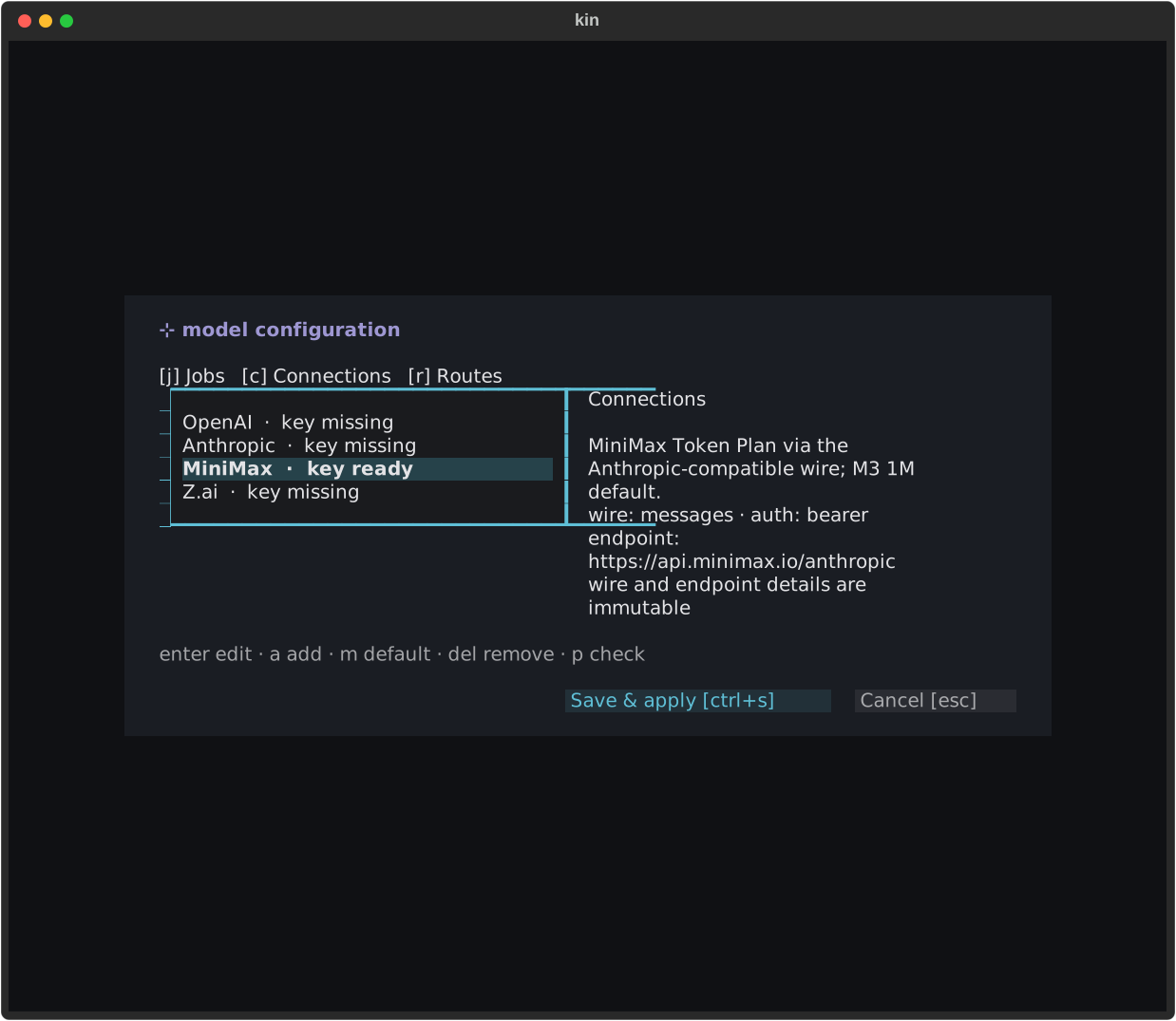
Edits remain staged until Save & apply. If the subsequent live switch fails,
the previous session configuration remains active; Kin asks you to retry
/reload. Keys are kept in the private credential store, separately from
ordinary settings.
Choose the right provider shape
| Connection | What you need |
|---|---|
| Kinra hosted | /login with your Kinra account. |
| Personal ChatGPT subscription | /login chatgpt; use --device-auth on a remote host. |
| Built-in API provider | That provider’s key, model, and any required subscription tier. |
| Local server | Endpoint, served model id/alias, and supported wire; no key if auth-free. |
| Custom hosted endpoint | Endpoint, explicit wire, model, and service credential. |
A subscription key and a pay-as-you-go key may belong to different products. Use the credential source named by your provider. The provider catalog records specific caveats.
Alternative connection methods
kin connect (one command)
kin connect saves a custom connection and prompts for its key without placing
it in argv. For a managed Kinra connection, prefer native login; existing early
Console connections have a migration guide.
The CLI reference owns flags, profile
refresh, and reconnect behavior.
Environment or CLI
A one-run override can select a saved preset:
kin --preset minimaxFor an auth-free local Chat Completions server:
KIN_BASE_URL=http://localhost:8000/v1 \
  KIN_PROVIDER=openai \
  KIN_MODEL=default \
  kin
A bare KIN_BASE_URL selects the Messages heuristic; explicitly choose
KIN_PROVIDER=openai for Chat Completions or KIN_WIRE_API=responses for
Responses. See models and wires.
settings.toml
Use the UI unless you manage configuration yourself. Ordinary settings live in
~/.kin/settings.toml; keys entered through Kin go to
~/.kin/credentials.toml with mode 0600. Connections and secrets are
global-only, so project settings cannot repoint them. The
configuration guide explains
precedence and safe file edits.
Local vLLM or a custom endpoint
Choose Custom endpoint… in Connections and match the server’s actual API: Messages, Chat Completions, or Responses. Leave the key empty for an auth-free local endpoint. Models and providers has persistent TOML examples and compatibility limits.
Kinra Spaces (private preview)
Spaces can prepare a personal Kinra connection from your application sign-in. Check Agent setup → Kin → Kinra, then start a new session. Existing provider choices, inherited model roles, and manually configured accounts are preserved.
/logout or a rejected key suspends automatic setup until Reconnect Kinra.
Browser sign-out leaves native work connected. Use native account commands to
change a manually configured account.
Send the first message
++enter++ sends; ++shift+enter++ inserts a newline. A reply confirms streaming; a successful tool call exercises more of the connection. Continue with First session to inspect activity, queue a follow-up, interrupt, and resume.
Planning review
For broad work, Kin may enter a read-only planning freeze. Review and approve the plan before execution; dismissing the review keeps it frozen. See planning for the choices.
Troubleshooting
- Blank key field: expected on a new connection; existing secrets stay masked.
401or “bad key kind”: check the provider and subscription/API product.- Local
404: match the wire to/v1/messages,/v1/chat/completions, or/v1/responsesas supported by the server. - Wrong model: inspect CLI/environment overrides and precedence.
- Save refused during work: let the turn finish or interrupt, then reopen Connections.