.%20--%3e%3csvg%20xmlns='http://www.w3.org/2000/svg'%20viewBox='0%200%201610%20300'%3e%3cdefs%3e%3clinearGradient%20id='kb'%20x1='0'%20y1='0'%20x2='0'%20y2='300'%20gradientUnits='userSpaceOnUse'%3e%3cstop%20offset='0'%20stop-color='%2373c6e5'/%3e%3cstop%20offset='.25'%20stop-color='%2352b5dc'/%3e%3cstop%20offset='.5'%20stop-color='%233a9fc8'/%3e%3cstop%20offset='.75'%20stop-color='%232b82ae'/%3e%3cstop%20offset='1'%20stop-color='%231a6490'/%3e%3c/linearGradient%3e%3c/defs%3e%3cg%20fill='url(%23kb)'%20fill-rule='evenodd'%3e%3cpath%20d='M0%20300V0H86V136H160V0H246V164H166V219H246V300H160V219H86V300Z'/%3e%3cpath%20d='M401%2083H321V0H567V83H487V219H567V300H321V219H401Z'/%3e%3cpath%20d='M642%20300V0H728V83H808V136H882V0H968V300H882V219H802V164H728V300Z'/%3e%3cpath%20d='M1043%20300V0H1289V164H1209V219H1289V300H1203V219H1129V300ZM1129%2083V136H1203V83Z'/%3e%3cpath%20d='M1364%20300V83H1444V0H1610V300H1524V219H1450V300ZM1450%2083V136H1524V83Z'/%3e%3c/g%3e%3c/svg%3e)
Kin / Outpost
Chat
Outpost Chat is the direct conversation with Kin when you are away from the terminal. It streams answers, shows tool progress, and connects durable attention back to Activity.
Read as MarkdownOutpost Chat is the direct conversation with Kin when you are away from the terminal. It streams answers, shows tool progress, and connects durable attention back to Activity.
Outcome
Start or continue an Outpost conversation, understand its live state, answer a question or approval, and sign out of the authenticated browser session.
Fast path
- Open Outpost; Chat is the default destination.
- Confirm the verified identity in the account chip. Sign out ends the authenticated session.
- Type a message. On desktop, ++enter++ sends and ++shift+enter++ adds a newline; on a touch keyboard, use the arrow button to send.
- Follow collapsed thinking and quiet tool status as the answer streams.
- Use Stop to interrupt, or tap an approval/question choice when Kin needs you.
- Choose New chat for a clean timeline; existing conversations remain in normal journal history.
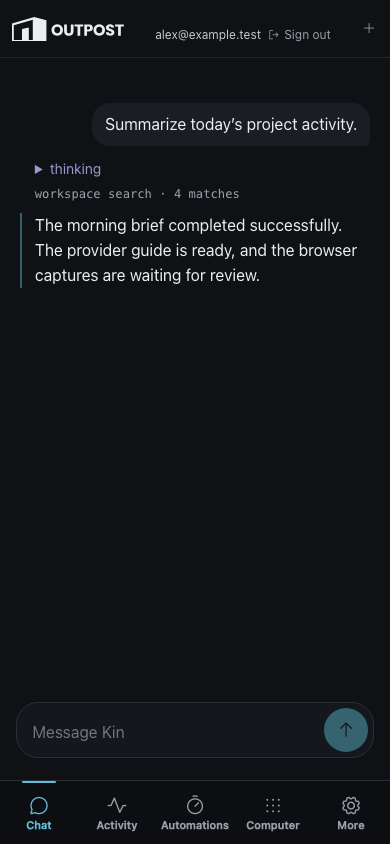
At 390px, the composer and five primary destinations stay reachable while the verified identity and Sign out remain inside the top bar.
Reading the conversation
The composer is one rounded message field with its send control inside. The button stays dim until text exists and becomes Stop while Kin is answering. Between sending and the first streamed content, a small working pulse holds the place; it disappears the moment text, thinking, or tool progress arrives, and while a question or approval is waiting on you. Thinking stays collapsed; tool work uses a compact status line; prose and code format progressively.
The needs you strip is a summary of the same durable attention shown in Activity, not a second inbox:
- a tool approval offers Approve once or Deny;
- a structured question renders its supplied choices and optional free text;
- a Rig login issue opens Computer rather than inventing an approval;
- a failed continuation offers Retry continuation.
The installed app badge counts open needs-you items, not unread chat messages. When no messages exist, Chat’s quiet truth line reports scheduled jobs, the next run, and whether attention is empty. An unavailable source says so rather than guessing.
Phone and desktop
On a phone, Chat, Activity, Automations, Computer, and More stay in a thumb-reachable bottom bar. The bar steps aside for the software keyboard so the composer remains visible. On desktop, the same destinations live in the labelled rail and Chat owns the remaining viewport.
The account chip appears in the desktop rail and phone top bar. Its email is the identity verified by the sign-in gate; the dashboard does not infer or invent it. Sign out navigates through the authentication gate and ends the session.
History and reconnect
History is server-side. A refresh opens the most recent active conversation, replays missed stream frames, then reconciles the composer with the authoritative in-flight state. An interrupted user-only turn therefore cannot leave Stop stuck on.
A brand-new chat with no accepted message may safely acquire a fresh session after a server restart. Once a message has been accepted, a missing journal is treated as unavailable history and is never silently replaced; start a new chat while the original is restored or investigated.
All model text is inserted through DOM text nodes. Links are restricted to
http and https.
Alternative paths
Needs you
Choose Review in Chat to open the durable Activity item with its typed controls.
Notification
A push or email opens the relevant item or run. Resolve it, then return to Chat without creating a duplicate conversation.
Terminal
Use the local TUI when the task needs direct project work, richer transcript browsing, or local session controls. Use Beam for a deliberate local-to-Outpost handoff.
Troubleshooting
- Send is disabled: enter non-whitespace text. On a touch keyboard the return key adds a newline; tap the arrow.
- Stop remains visible after reconnect: refresh once; if the authoritative turn is still running, Stop is correct.
- The timeline will not recover: a missing non-empty journal fails closed. Start a new chat and ask the operator to inspect the original.
- Wrong account: use Sign out, then authenticate as the intended user.
- The connection indicator degrades: submitted messages remain server authoritative; wait for reconnect before repeating a send.