.%20--%3e%3csvg%20xmlns='http://www.w3.org/2000/svg'%20viewBox='0%200%201610%20300'%3e%3cdefs%3e%3clinearGradient%20id='kb'%20x1='0'%20y1='0'%20x2='0'%20y2='300'%20gradientUnits='userSpaceOnUse'%3e%3cstop%20offset='0'%20stop-color='%2373c6e5'/%3e%3cstop%20offset='.25'%20stop-color='%2352b5dc'/%3e%3cstop%20offset='.5'%20stop-color='%233a9fc8'/%3e%3cstop%20offset='.75'%20stop-color='%232b82ae'/%3e%3cstop%20offset='1'%20stop-color='%231a6490'/%3e%3c/linearGradient%3e%3c/defs%3e%3cg%20fill='url(%23kb)'%20fill-rule='evenodd'%3e%3cpath%20d='M0%20300V0H86V136H160V0H246V164H166V219H246V300H160V219H86V300Z'/%3e%3cpath%20d='M401%2083H321V0H567V83H487V219H567V300H321V219H401Z'/%3e%3cpath%20d='M642%20300V0H728V83H808V136H882V0H968V300H882V219H802V164H728V300Z'/%3e%3cpath%20d='M1043%20300V0H1289V164H1209V219H1289V300H1203V219H1129V300ZM1129%2083V136H1203V83Z'/%3e%3cpath%20d='M1364%20300V83H1444V0H1610V300H1524V219H1450V300ZM1450%2083V136H1524V83Z'/%3e%3c/g%3e%3c/svg%3e)
Kin / Get started
Connect a model and first run
Connect Kin to a provider, confirm the active model in the welcome screen, and send a first message. The recommended path stays inside the TUI and does not require editing a configuration file.
Read as MarkdownConnect Kin to a provider, confirm the active model in the welcome screen, and send a first message. The recommended path stays inside the TUI and does not require editing a configuration file.
Outcome
At the end, the welcome banner names the provider’s active model and your workspace. Kin can answer a message now, and the provider choice is saved for new sessions.
Fast path: /models
-
Launch Kin from the project you want it to work in:
uv run kin -
Type
/modelsand press ++enter++. The hub opens on Jobs; presscfor Connections. (/providersis a shortcut to this section.) -
Pick a built-in connection or add a custom endpoint. The detail pane shows where requests go without ever displaying a stored key or header value.
-
For OpenAI, keep Chat Completions (default) or deliberately select Responses. Pick a model if the provider offers more than one. For subscription providers, also choose the plan tier so Kin can apply the correct model and subagent limits.
-
Paste the key into the masked field. It starts empty in a clean setup and the capture below deliberately contains no secret.
-
Press ++ctrl+s++ or choose Save & apply. Kin validates the complete provider and route configuration, saves it atomically to
~/.kin/settings.toml, and switches the current session when Main changed. -
Confirm the model in the welcome banner, then send a message such as
Summarize this project and suggest one useful first task.
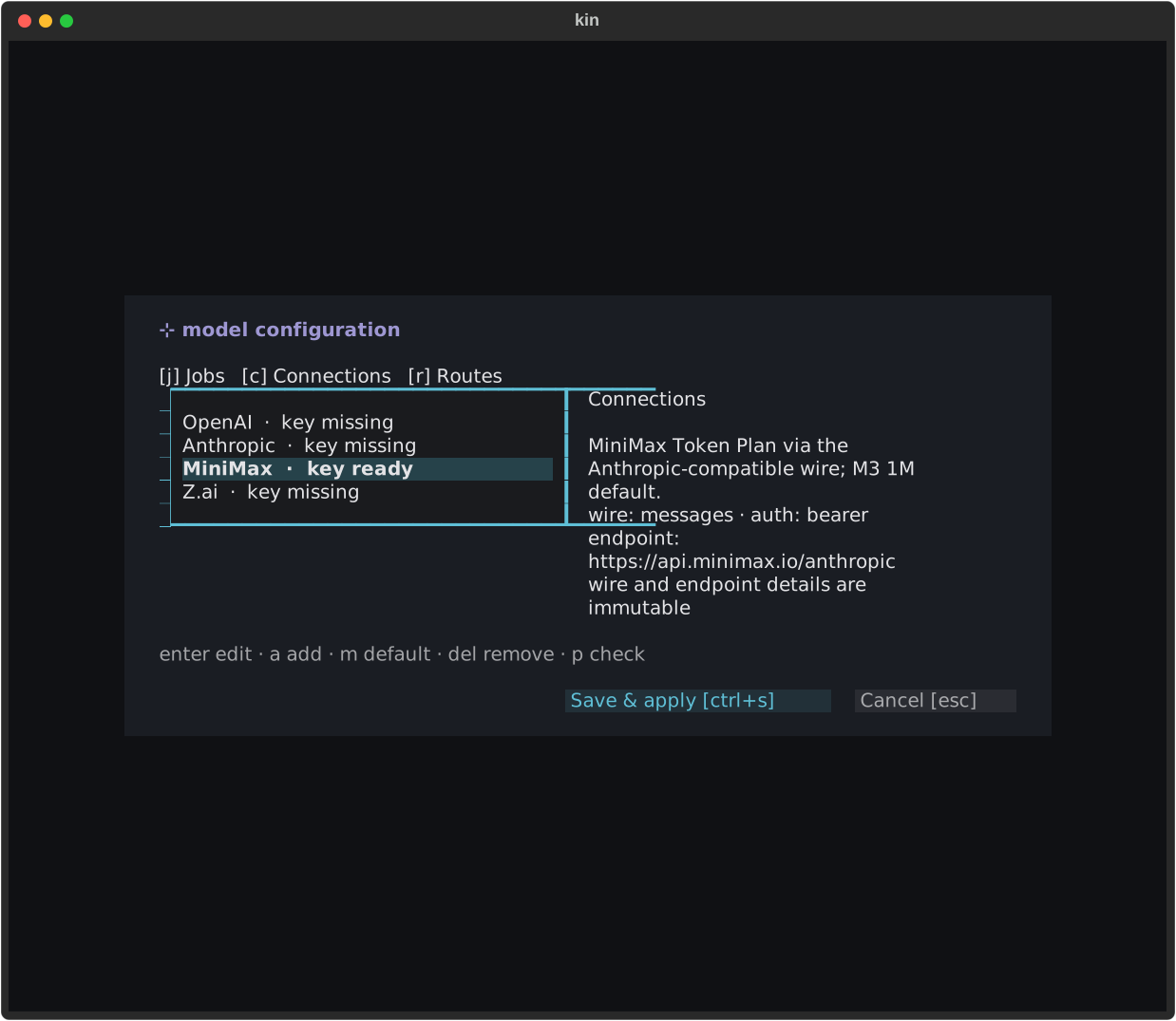
The Connections pane is the canonical provider journey. /providers [name]
deep-links here; all edits remain staged until Save & apply.
The hub prepares the complete catalog before it writes. If a post-save live
switch unexpectedly fails, the old live snapshot remains active and Kin tells
you to retry /reload; the disk configuration is never half-written.
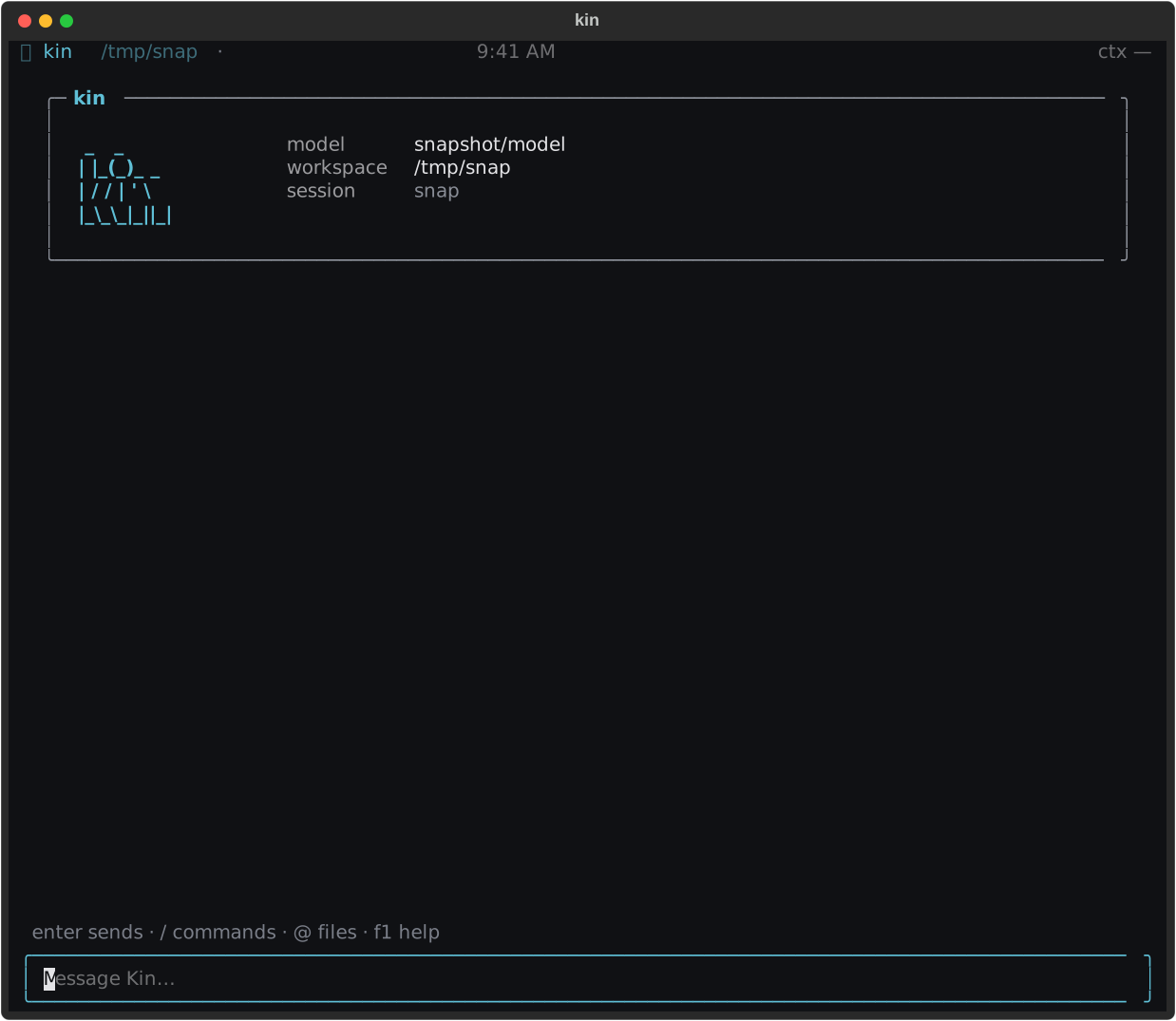
Before sending, confirm both the model and workspace. The welcome panel disappears when the conversation begins.
Choose the right provider shape
| Shape | Choose it when | What you supply |
|---|---|---|
| Built-in preset | OpenAI, Anthropic, MiniMax, or Z.ai is your provider | The provider-specific key and model; curated subscription providers may also expose a tier |
| Anthropic-direct | You have a standard Anthropic API account | Anthropic wire, key, and model |
| OpenAI-direct | You have an OpenAI API account | Key and model; the OpenAI wire is the default |
| Local vLLM | A model server is on this machine or your private network | URL, model alias/id, and the wire it actually exposes |
| Custom hosted endpoint | OpenRouter or another compatible service | URL, explicit wire, model, and key |
Use the provider’s own key source. A key that fits the field syntactically can still be the wrong product: MiniMax subscription and pay-as-you-go keys are not interchangeable.
/providers stores keys by provider id, so switching providers does not make a
generic environment key silently win over the active preset. The UI masks
resolved secrets, and the clean capture contains no key. Do not paste a real
key into a bug report, screenshot, shell history, or project settings file.
Alternative connection methods
The same settings can come from a launch command or a file. These methods are useful for local servers, temporary overrides, automation, or a configuration managed outside Kin.
kin connect (one command)
For a hosted OpenAI-compatible endpoint, kin connect does the whole
thing from the shell — creates the custom connection, prompts for the API
key (masked; never taken from argv or an environment variable), and makes
its model active:
kin connect kinra-api \
  --base-url https://api.kinra.ai/v1 \
  --wire-api responses \
  --model deepseek-v4-flash \
  --label "Kinra hosted inference"
Then just kin. Re-running the same command rotates the stored key;
a same-id command with a different endpoint, wire, or model refuses
without changing anything. See
CLI flags → kin connect.
Environment or CLI
A built-in provider preset needs only the preset, key, and optional model:
KIN_PRESET=minimax KIN_API_KEY="<key>" uv run kinCLI flags win over environment variables and are useful for one launch:
uv run kin --preset minimax --model "MiniMax-M3[1m]"Anthropic-direct uses the Anthropic wire:
KIN_PROVIDER=anthropic \
  ANTHROPIC_API_KEY="<key>" \
  KIN_MODEL=claude-opus-4-8 \
  uv run kin
OpenAI-direct uses Chat Completions by default:
OPENAI_API_KEY="<key>" KIN_MODEL=gpt-4o-mini uv run kinOpt into Responses explicitly with --wire-api responses or
KIN_WIRE_API=responses. The wire choice already implies OpenAI:
OPENAI_API_KEY="<key>" uv run kin --wire-api responses --model "<model-id>"settings.toml
/providers writes this shape for you. If configuration is managed
manually, the equivalent global files are:
# ~/.kin/settings.toml
provider_preset = "minimax"
model = "MiniMax-M3[1m]"
# ~/.kin/credentials.toml — kin writes this file (0600) for you
[provider_keys]
minimax = "<key>"Keys entered through kin land in ~/.kin/credentials.toml automatically;
a key hand-written into a legacy settings.toml still works and migrates
on the next settings write. Provider routing and secrets are global-only,
so a cloned repository’s .kin/settings.toml cannot redirect your key.
Local vLLM or a custom endpoint
For an auth-free local OpenAI-compatible server:
KIN_BASE_URL=http://localhost:8000/v1 \
  KIN_PROVIDER=openai \
  KIN_MODEL=default \
  uv run kin
With KIN_BASE_URL set and KIN_PROVIDER omitted, Kin deliberately chooses
the Anthropic Messages wire. That is the preferred vLLM path when the serve
exposes /v1/messages; set KIN_PROVIDER=openai when it exposes Chat
Completions, or KIN_WIRE_API=responses when it exposes the Responses API.
To make a custom endpoint available in /providers and /model, choose
Custom endpoint… in the modal or add a global catalogue row:
[[providers]]
id = "local-vllm"
label = "Local vLLM"
provider = "anthropic"
base_url = "http://localhost:8000/v1"
model = "default"
For the qualified vLLM Responses shape, use an OpenAI row and opt in:
[[providers]]
id = "local-vllm-responses"
label = "Local vLLM (Responses)"
provider = "openai"
wire_api = "responses"
base_url = "http://localhost:8000/v1"
model = "default"
An auth-less local endpoint leaves the key empty. For OpenRouter or another
hosted OpenAI-compatible endpoint, use provider = "openai" and enter the
key through /providers.
Send the first message
The composer says Message Kin…. ++enter++ sends, ++shift+enter++ inserts a
newline, and ++ctrl+s++ is a send alias. While the turn runs:
- Kin’s answer streams in cyan; reasoning stays collapsed in periwinkle.
- Tool calls appear as concise work-log rows. Expand a row when you need its inputs or output.
- Only
edit_fileandwrite_filediffs expand automatically, and only those rows receive the(+N -M)change-count badge. Edit diffs show one unchanged context line around each change; patch reads and commit-review output stay collapsed and preserve their review context when opened. - The status line names the active phase and keeps ++esc++ as the interrupt path.
You can type a follow-up before the turn finishes. Kin holds one latest-wins
message and labels the composer queued · up edits · <preview>. Press ++up++
to withdraw it into the composer; automatic sending stops until you submit it
again. If you had begun a different draft, ++down++ restores that draft.
The first request is also a useful connection check. A reply confirms the wire can stream; a tool row confirms the backend can assemble tool calls; and the top-bar context meter confirms usage is being observed. If plain chat works but tools fail, keep the provider/model visible in the report—the catalogue page records provider-specific tool and reasoning caveats.
Planning review
For larger work, Kin may enter a read-only planning freeze and show a visible plan review. You can Approve & execute, Approve, clear & re-inject, or choose Review plan first (adversarial); dismissing the modal keeps planning. Critic findings can be applied as bounded targeted revisions to the saved plan while the freeze remains active; ordinary file edits and shell commands remain blocked until you explicitly accept execution.
The task-facing choice is the important part. The write_plan argument shapes
and plan-file mechanics are maintained in Modes &
approvals and the maintainer
reference.
Troubleshooting
- The key field is blank: that is expected on a clean provider. Paste the correct provider or subscription key; screenshots and logs should never contain it.
401or “bad key kind”: MiniMax subscription keys and pay-as-you-go API keys are distinct.- Local server returns
404: confirm whether it exposes/v1/messagesor/v1/chat/completions, then selectanthropicoropenaiaccordingly. - The banner names the wrong model: an environment variable or CLI flag is overriding the saved file. Check the precedence in Configuration.
- Save is refused during a turn: wait for the turn to settle or interrupt
it, then reopen
/providers.