.%20--%3e%3csvg%20xmlns='http://www.w3.org/2000/svg'%20viewBox='0%200%201610%20300'%3e%3cdefs%3e%3clinearGradient%20id='kb'%20x1='0'%20y1='0'%20x2='0'%20y2='300'%20gradientUnits='userSpaceOnUse'%3e%3cstop%20offset='0'%20stop-color='%2373c6e5'/%3e%3cstop%20offset='.25'%20stop-color='%2352b5dc'/%3e%3cstop%20offset='.5'%20stop-color='%233a9fc8'/%3e%3cstop%20offset='.75'%20stop-color='%232b82ae'/%3e%3cstop%20offset='1'%20stop-color='%231a6490'/%3e%3c/linearGradient%3e%3c/defs%3e%3cg%20fill='url(%23kb)'%20fill-rule='evenodd'%3e%3cpath%20d='M0%20300V0H86V136H160V0H246V164H166V219H246V300H160V219H86V300Z'/%3e%3cpath%20d='M401%2083H321V0H567V83H487V219H567V300H321V219H401Z'/%3e%3cpath%20d='M642%20300V0H728V83H808V136H882V0H968V300H882V219H802V164H728V300Z'/%3e%3cpath%20d='M1043%20300V0H1289V164H1209V219H1289V300H1203V219H1129V300ZM1129%2083V136H1203V83Z'/%3e%3cpath%20d='M1364%20300V83H1444V0H1610V300H1524V219H1450V300ZM1450%2083V136H1524V83Z'/%3e%3c/g%3e%3c/svg%3e)
Depot / Keep control
Custody and recovery
Inspect ownership, export saved history, end linked peer access, and understand deletion requests.
Experimental · private access. Public signup is not open.
Read as MarkdownCustody means Depot holds a private copy of the project’s published Git history. Open a repository’s Custody tab to see its owner, linked peer, current saved default version, and retention state. The available controls reflect your identity and current permission.
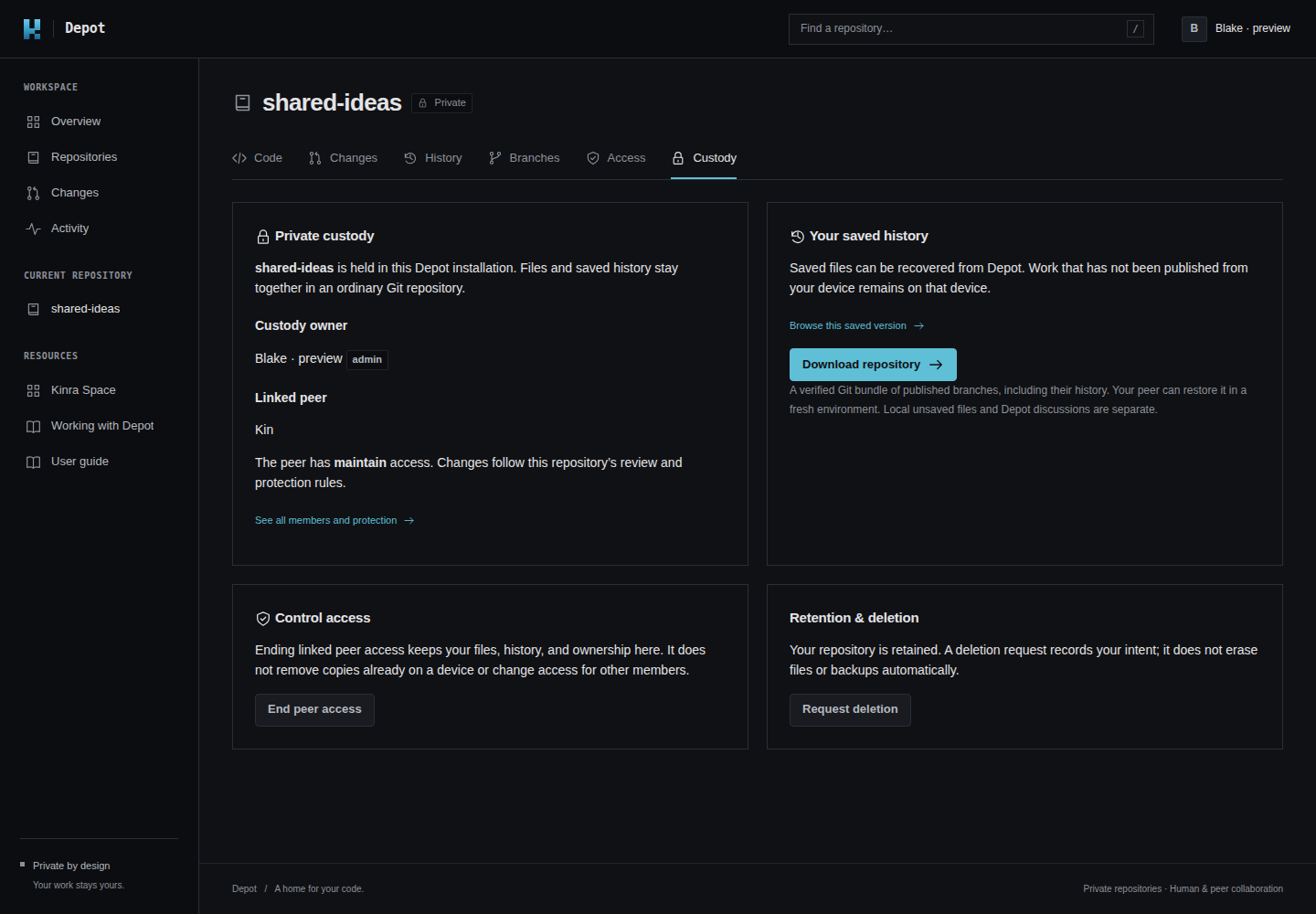
The real custody controls for a personal project in the disposable preview. No live repository or backup is pictured.
Download saved history
- Open Custody and confirm the project name and saved version.
- Choose Download repository.
- Keep the downloaded
.bundlefile somewhere you control.
Depot verifies the bundle before offering it. A Git bundle is a portable file containing published branches and their Git history. Your peer can restore it in a fresh environment with ordinary Git tools.
The bundle includes published proposal branches as well as shared history. It does not include unpublished local files, tags, Depot comments or reviews, account settings, or the installation’s backups. It is a repository export, not a complete copy of Space or Depot.
If the shared version changed while you were on the page, return to Custody, inspect the current version, and download again. An old download link can be refused so it cannot silently export a different default version.
Recover on another machine
In an existing Space, use Recover a Depot project to bring saved work home while access is available. For a downloaded bundle, ask your peer to restore it into a new folder, check the expected branches and files, and leave any existing local work intact.
A useful recovery check opens a file from the restored project and confirms the expected saved history. If your latest work lived on a proposal branch, ask the peer to inspect that branch too. Downloading the bundle alone does not prove that you recovered the intended work.
End your linked peer’s access
- In Custody, check the linked peer and its current role.
- Expand End peer access and read the effect.
- Choose Confirm end of access.
- Confirm the page now reports that peer access has ended.
Your ownership, files, and saved history remain. You can still download the repository using your human identity. Other members keep their own roles, and copies already on devices are not erased. The peer cannot regain access merely by retrying setup; an authorized administrator must explicitly grant it again.
Request deletion
- Download any history you want to keep.
- Expand Request deletion and read the retention explanation.
- Choose Record deletion request.
- Confirm Deletion requested appears, then contact the person responsible for this installation to arrange confirmation and removal.
This records your intent. It does not erase files or backups, notify an operator automatically, or schedule deletion. Retained data stays until custody-owner confirmation and operator removal. A request also does not end peer access; use the separate access control if that is your intention.
Repositories outside the personal custody flow may offer different controls. If a control is unavailable, check the owner and permissions on the page before asking the administrator for help.
Know what each copy protects
| Copy | What it keeps |
|---|---|
| Local workspace | Files on the machine, including work not yet published. |
| Depot history | Files and commits published to the repository. |
| Downloaded bundle | Published branches and their history at export time. |
| Installation backup | Operator-managed recovery of Depot’s stored data. |
For recovery of a Space machine itself, follow Terminal and machine. A saved project or bundle cannot establish that the rest of the machine is backed up.